
How to use Meeting AI
Set it up once, then let it listen. This guide walks through every screen and every button, with real screenshots from the app.
Ready in five steps
- Install and sign inDownload the app from this page and sign in with your Meeting AI account.
- Add your knowledge filesYour CV, project stories, notes and prepared answers. Answers come from these files first.
- Paste the job descriptionUnder Context & files, so answers and the summary fit this job.
- Pick the language and AutoChoose the interview language, then Auto to answer every question as soon as it ends.
- Start and go to focus modePress Start Listening, switch to Focus, and join your call. It stays hidden from screen sharing.
The full view
Where you set things up and follow the meeting: the live transcript on the left, the answers on the right.
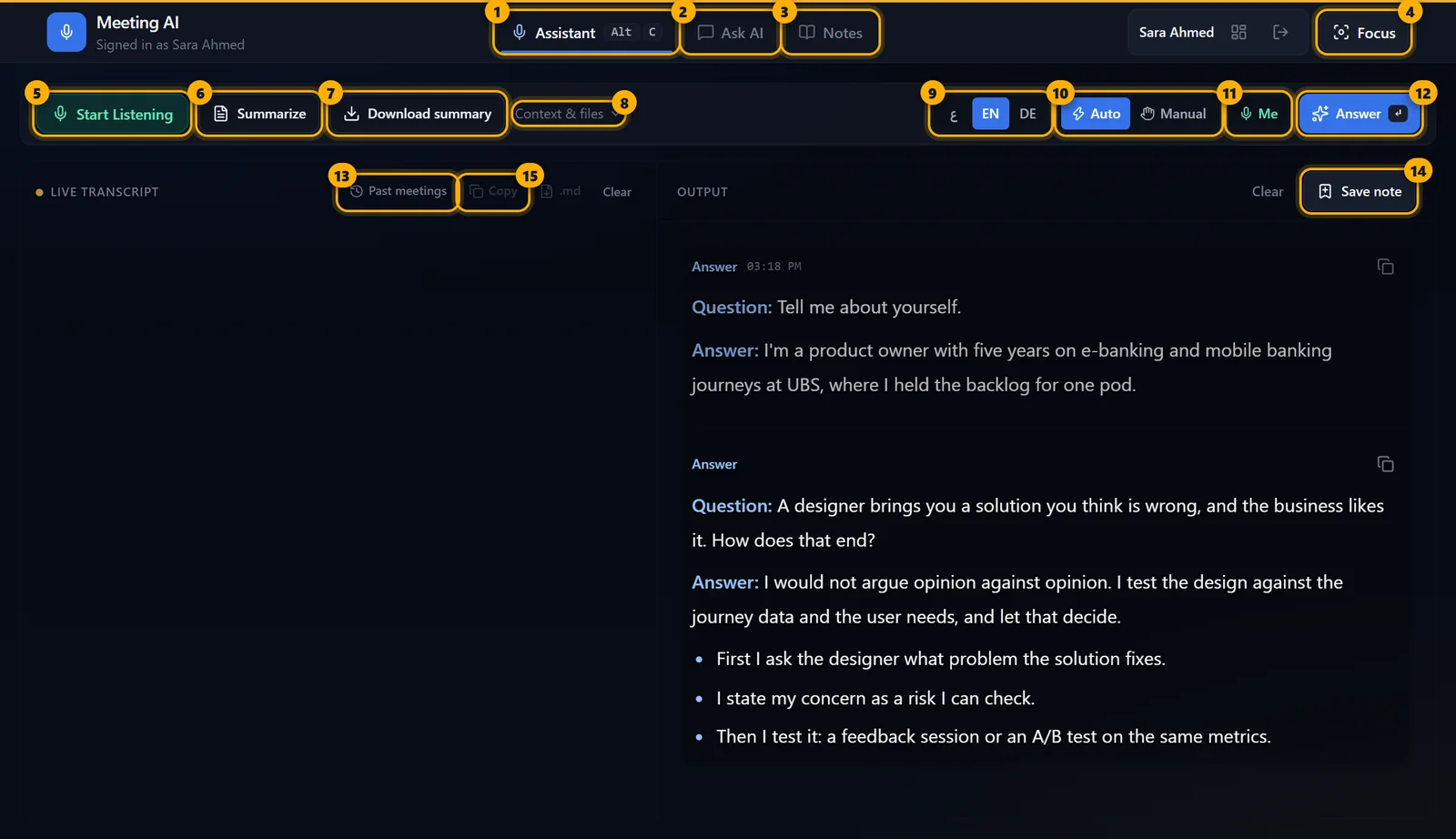
- 1AssistantThe live meeting screen: transcript and answers.
- 2Ask AIA chat with the AI: ask anything, or paste interview questions to practise.
- 3NotesAnswers you saved during your meetings.
- 4FocusSwitches to the small overlay you use during the call (screen 4).
- 5Start ListeningStarts hearing the meeting. Press again to stop; when you stop, the meeting summary is written and saved on its own.
- 6SummarizeA summary of the conversation so far, shown in the answer panel.
- 7Download summarySaves the meeting summary now: a PDF in Downloads with the summary, the suggested answers and the full transcript.
- 8Context & filesOpens your knowledge files, interview notes, CV and job description (screen 2).
- 9Meeting languageArabic, English or German. Listening and answers use only this language.
- 10Auto / ManualAuto answers every question as soon as the interviewer stops. Manual answers only when you press Answer.
- 11MeAlso listens to your microphone, so the transcript shows what you said and you get notes on your own answers.
- 12AnswerAnswers the latest question right now. Shortcut: Enter.
- 13Past meetingsEvery earlier meeting, saved on this device (screen 7). The live transcript always starts empty.
- 14Save noteKeeps the current answer in Notes.
- 15Copy · .md · ClearCopy the live transcript, download it as a file, or clear it to start a new meeting.
TipAnswers appear on the right, newest at the bottom. Question is what the interviewer asked; Answer is ready to say aloud.
Context & files
Open Context & files in the full view (or Notes & context in focus mode). Everything here is saved automatically and used in every answer.
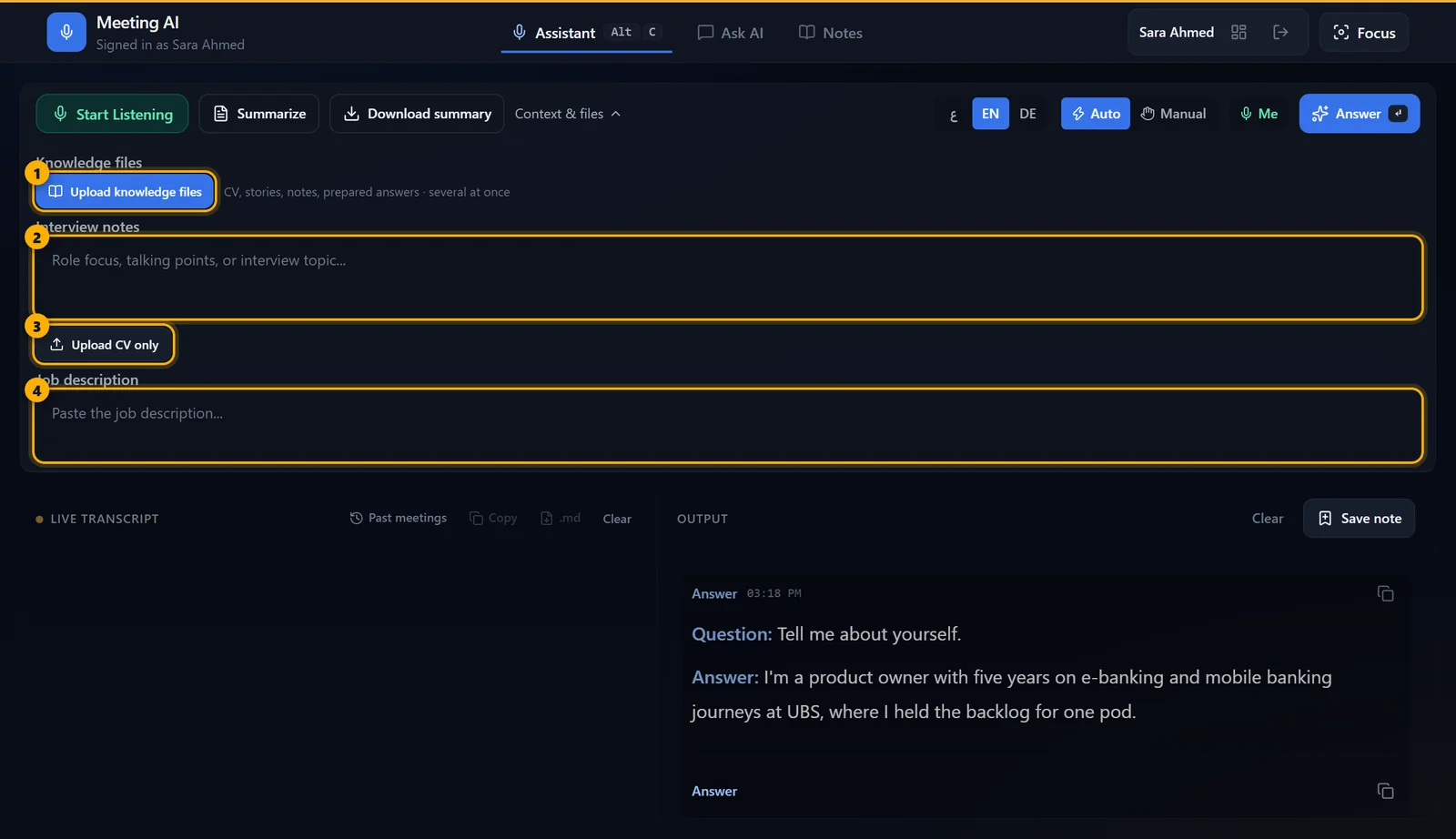
- 1Upload knowledge filesAdd several files at once: CV, project stories, notes, prepared answers, any document. Answers use these files first, and only go beyond them when the files don't cover the question.
- 2Interview notesShort points for this meeting: what to stress, facts to mention, things to avoid.
- 3Upload CV onlySets one file as your CV. For more material, use Upload knowledge files.
- 4Job descriptionPaste the job ad. Answers and the meeting summary are tailored to this job.
TipChange the job description before each interview: every meeting gets its own summary for its own job.
Your knowledge base
All your knowledge files in one place: open the dashboard with the button next to your name at the top of the app, then Knowledge base.
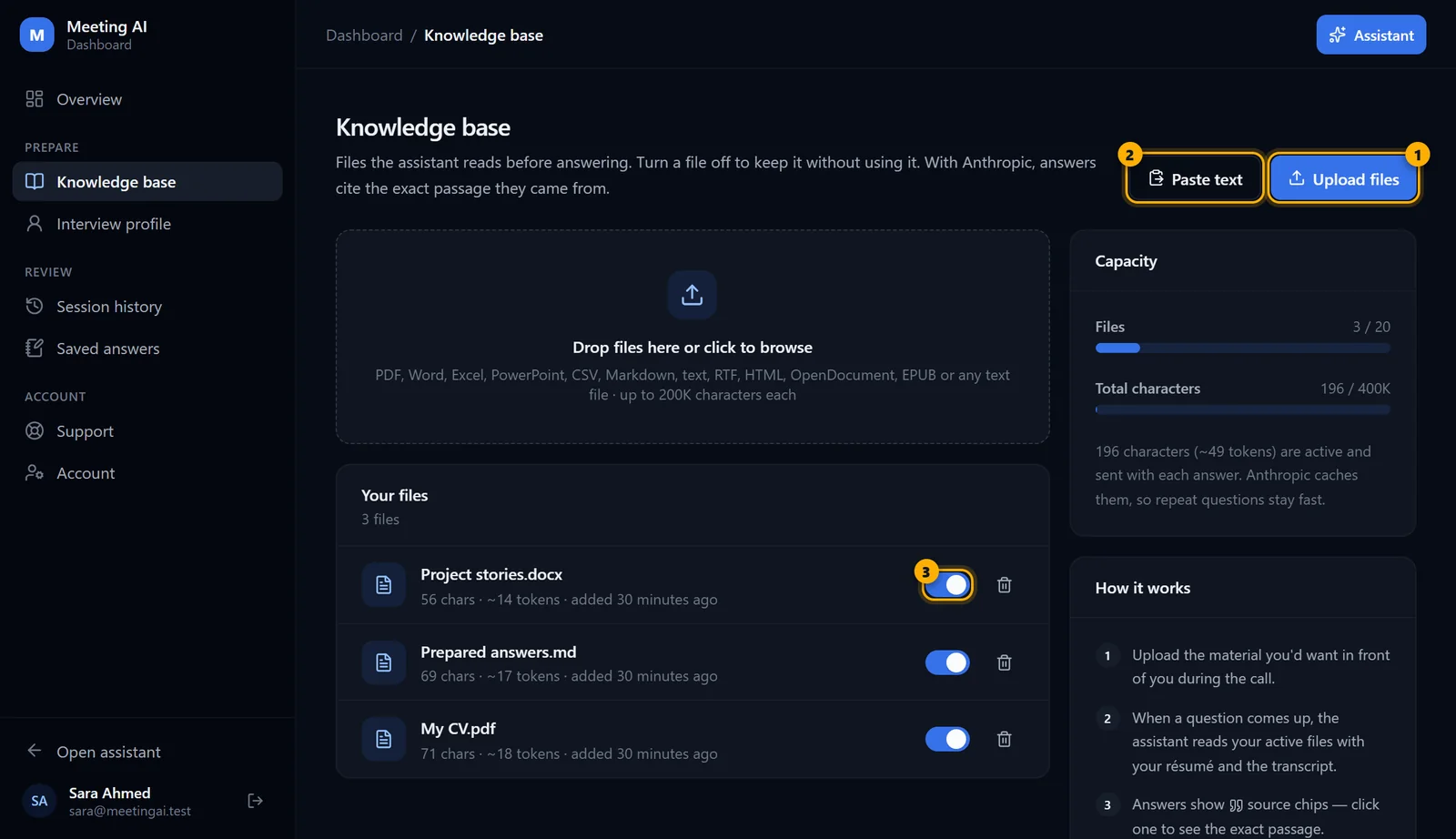
- 1Upload filesPDF, Word, Excel, PowerPoint, text and more, up to 200,000 characters each. You can also drop files on the box.
- 2Paste textPaste prepared answers or notes straight in, without a file.
- 3On / offTurn a file off to keep it without using it in answers. The bin deletes it.
Focus mode — during the call
A small bar with the answer panel under it. It floats over your meeting app, stays hidden from screen sharing, and clicks pass through the empty parts to the app behind. Drag the bar to move it.
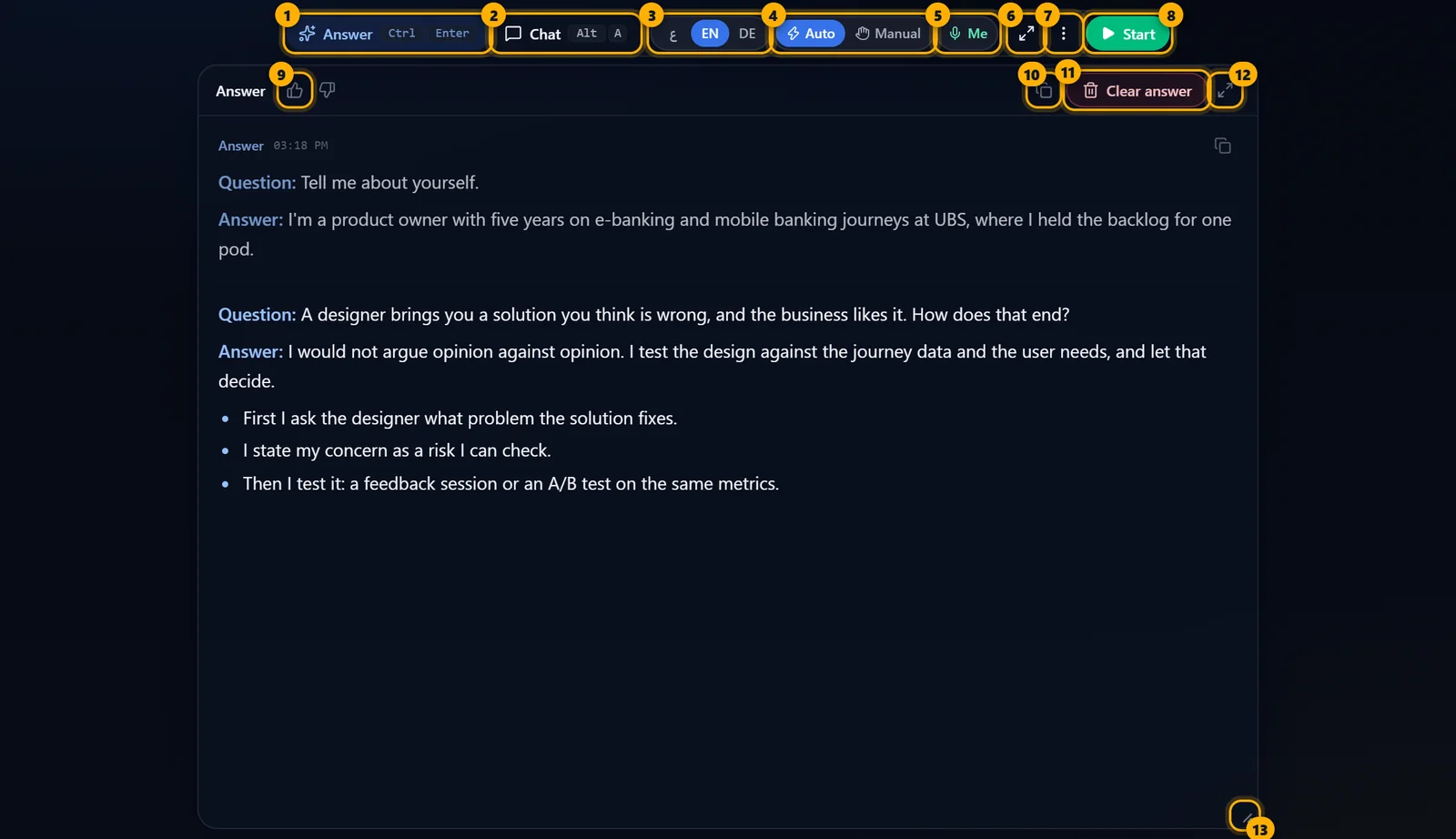
- 1AnswerAnswers the latest question now. Shortcut: Ctrl+Enter.
- 2ChatOpens the chat: type a question or paste practice questions (screen 5). Shortcut: Alt+A.
- 3Meeting languageArabic, English or German.
- 4Auto / ManualAnswer every question on its own, or only when you press Answer.
- 5MeAlso hears your microphone.
- 6Full viewBack to the full view.
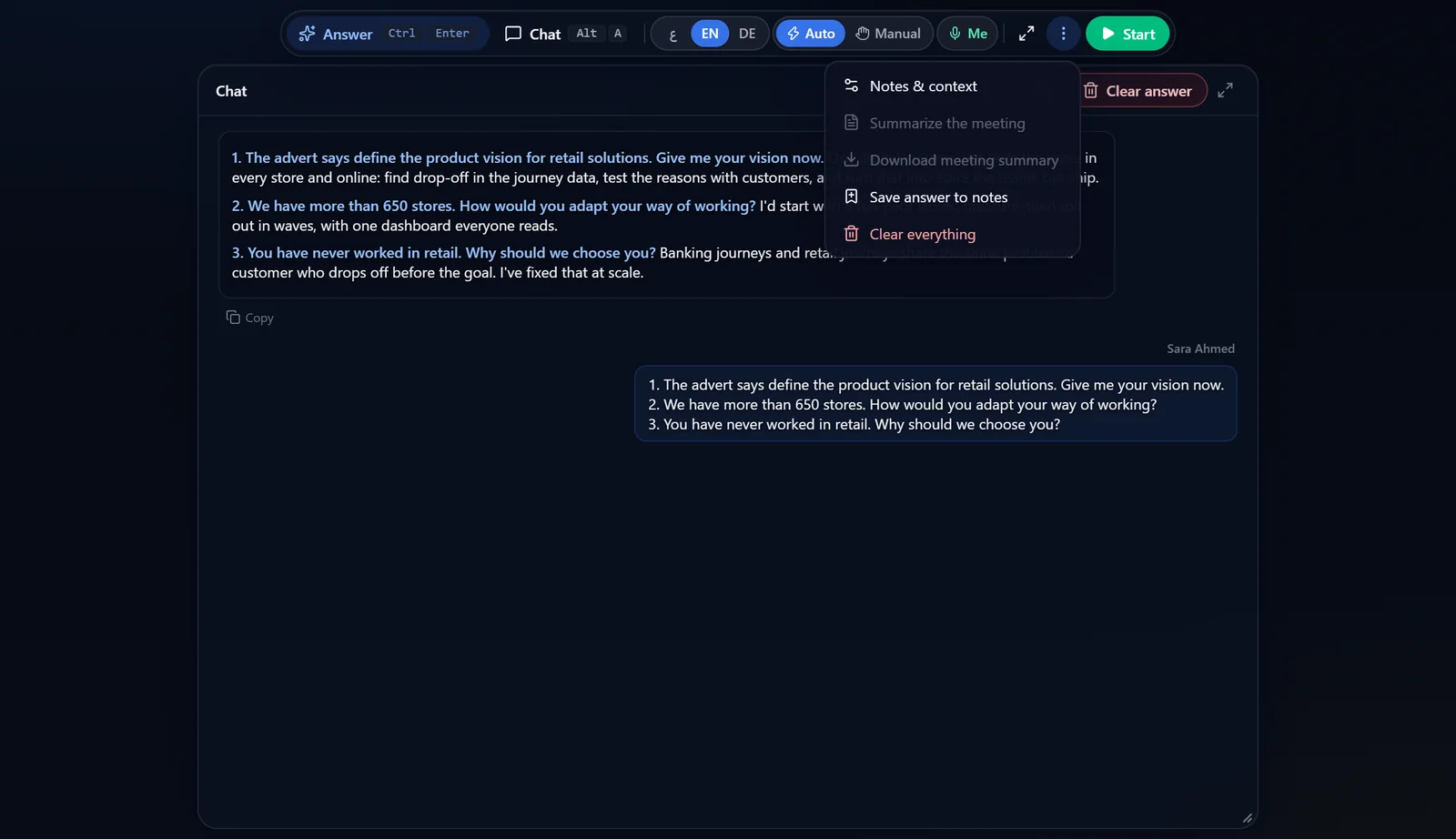
- 7More (⋮)Notes & context, summary, save, clear (screen 6).
- 8StartStarts listening; it turns into End during the meeting.
- 9Good / bad answerTells us how the answer was, to improve the next ones.
- 10CopyCopies the answer.
- 11Clear answerClears the answers. Shortcut from any app: Ctrl+Alt+Backspace.
- 12Larger panelSwitches the panel between normal and tall.
- 13ResizeDrag the corner (or the bottom or right edge) to make the answer panel exactly the size you want. The size is remembered.
TipThe app shows in the taskbar and Alt+Tab (Dock and Cmd+Tab on Mac), so you can always bring it back after minimizing. The window itself still doesn't appear in a screen share.
Practise the night before
Ask an AI for the questions you expect, then paste them into Chat, one per line. Each question is answered in order, in your own voice, from your knowledge files first.
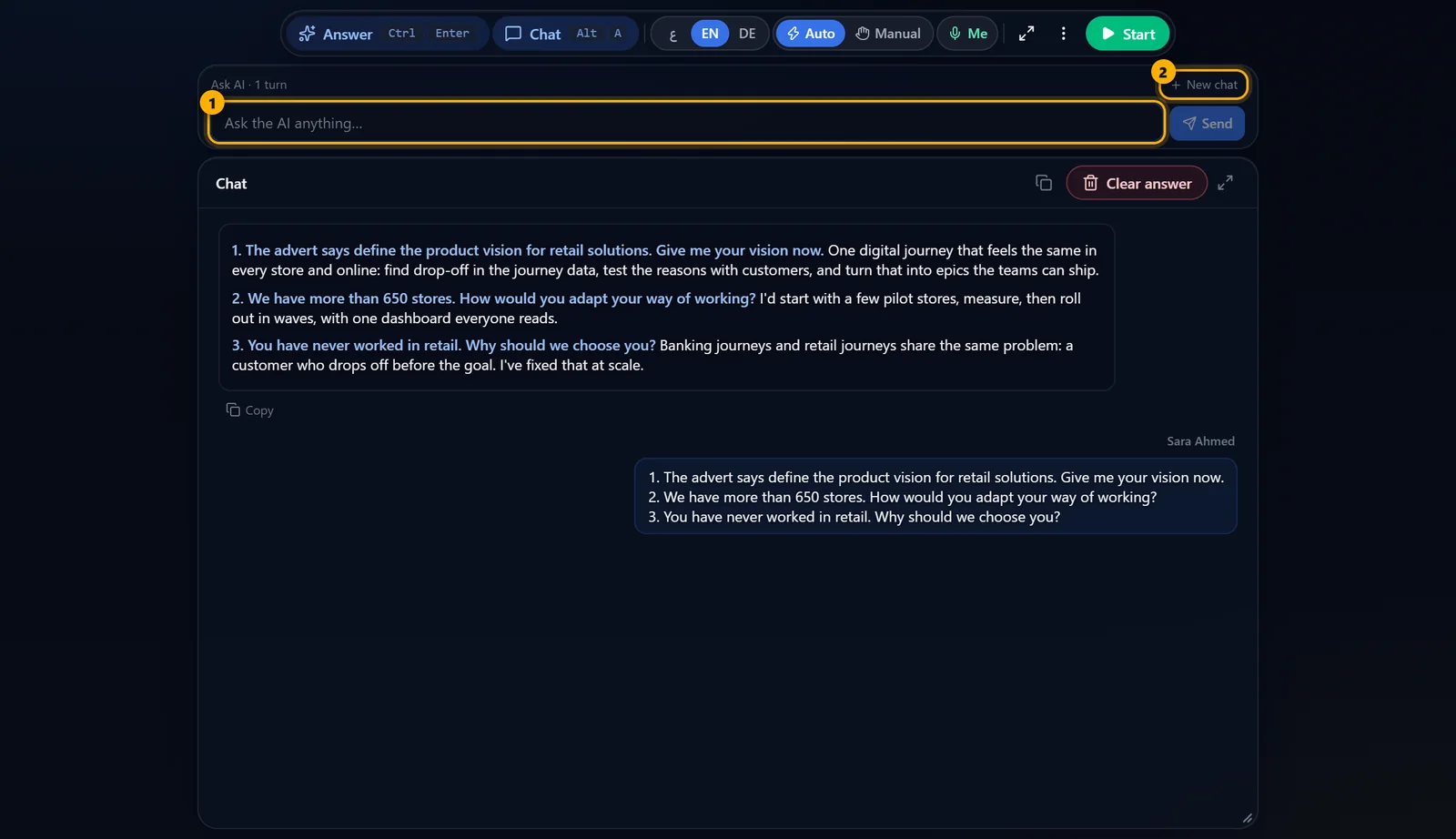
- 1Message boxPaste one or many questions. Enter sends, Shift+Enter adds a new line.
- 2New chatStarts a fresh conversation. Shortcut: Ctrl+Shift+N.
TipWant a different angle? Reply in the same chat, e.g. "shorter", "add a number", or "more about leadership".
The More menu (⋮)
In focus mode, everything that doesn't need to be on the bar.
Past meetings
Every meeting is saved on your device as it happens. Open Past meetings above the live transcript to read one again.
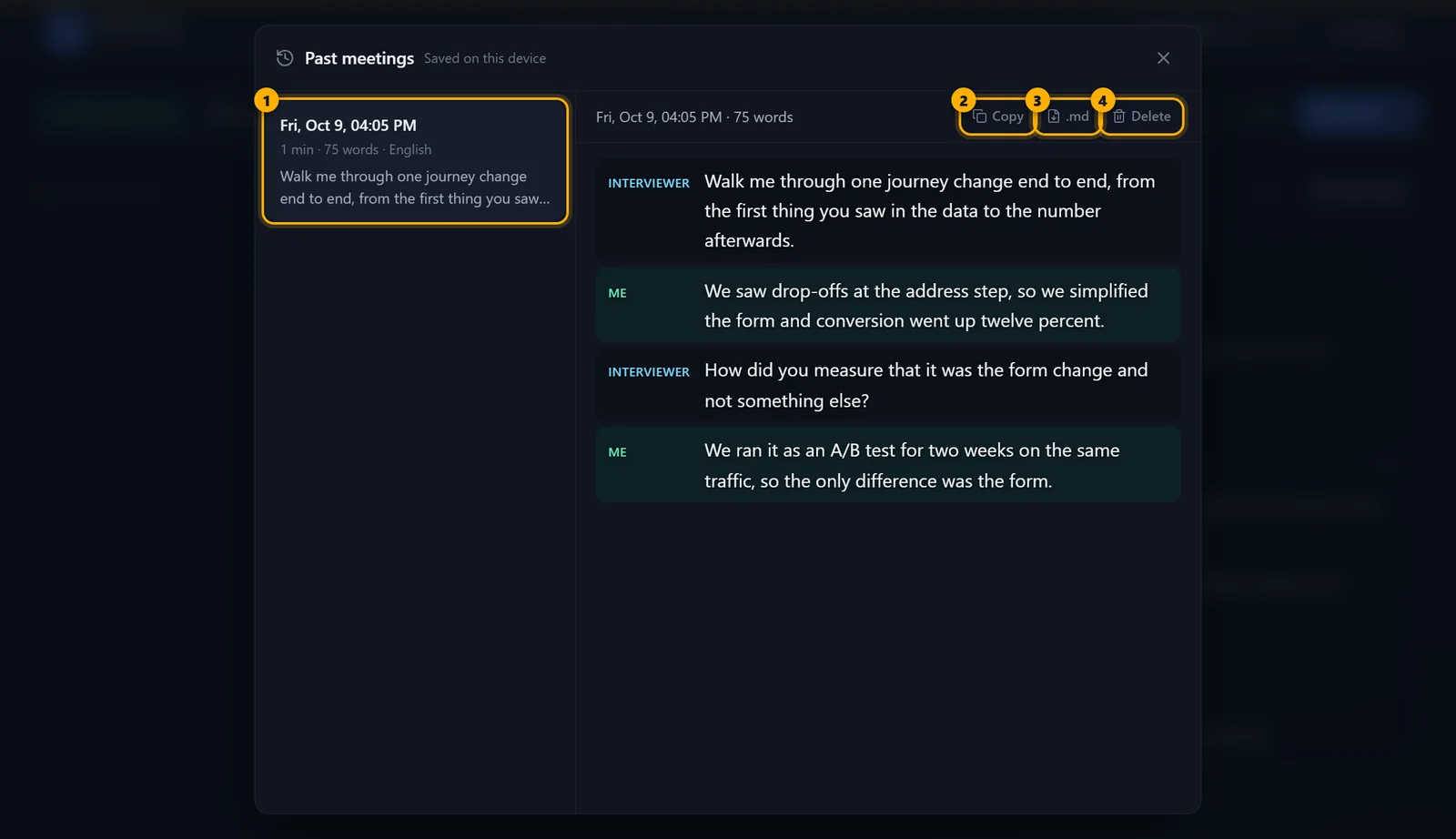
- 1Meeting listNewest first, with the date, length, words and language. Click one to read it.
- 2CopyCopies the whole transcript.
- 3.mdDownloads it as a text file.
- 4DeleteRemoves it from this device (asks first).
TipTranscripts stay on your computer only. The summary PDF of each meeting is in your Downloads folder.
Ask AI in the full view
The same chat as in focus mode, with more room. Good for preparing before the interview.
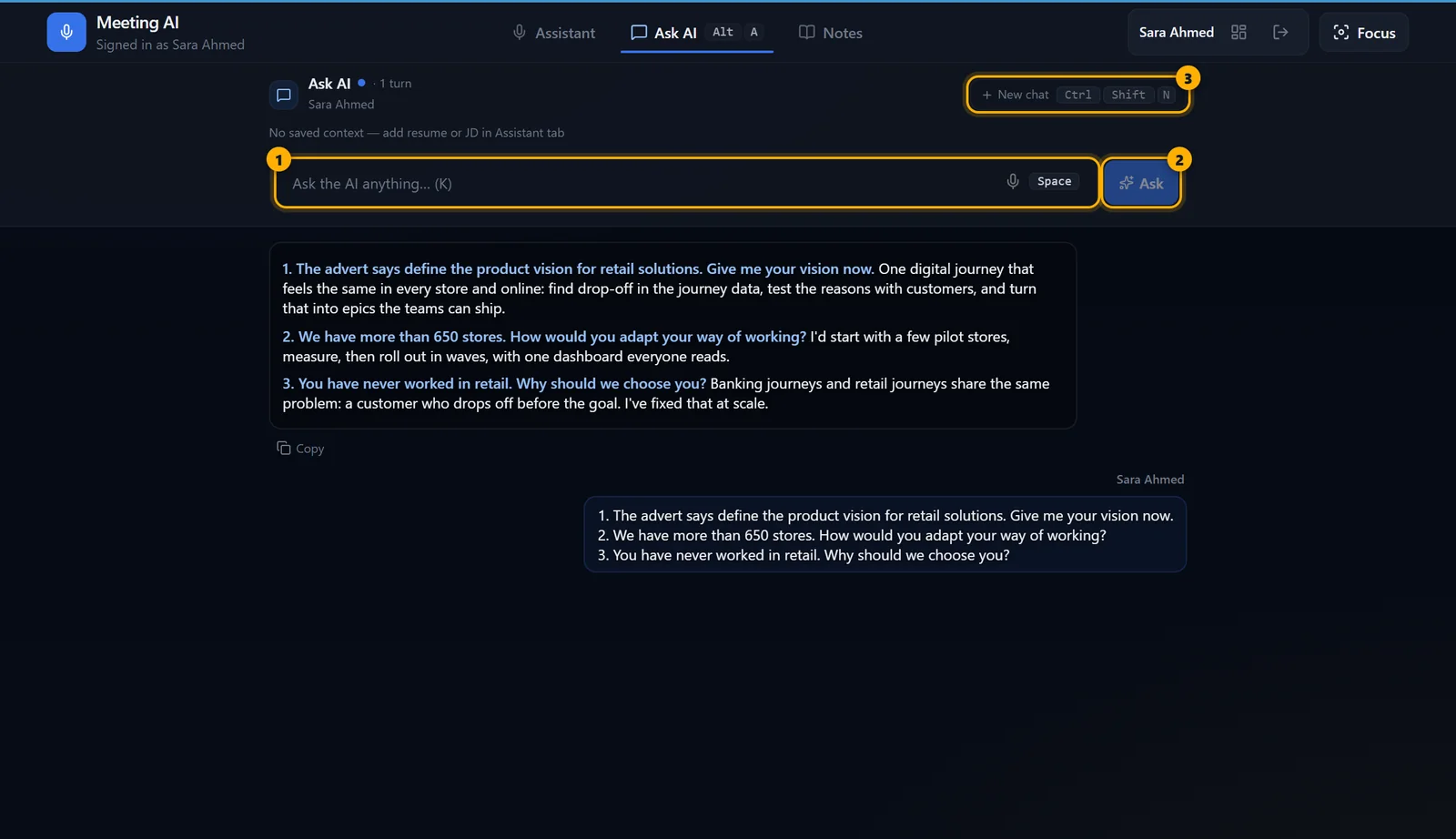
- 1Message boxAsk anything or paste practice questions. Hold Space (or the mic) to speak your question instead.
- 2AskSends the message.
- 3New chatStarts over.
Keyboard shortcuts
The ones marked from any app work even while your meeting app is in front.
| Ctrl Shift Space | Show or hide Meeting AI — from any app |
| Ctrl Alt Enter | Answer the latest question — from any app |
| Ctrl Alt Backspace | Clear the answer — from any app |
| Ctrl Alt M | Switch Auto / Manual — from any app |
| Ctrl Alt ← ↑ → ↓ | Move the window — from any app |
| Ctrl Shift 1 | Take a screenshot and ask about what's on screen — from any app |
| Ctrl Enter | Answer now (focus mode) |
| Alt A | Open the chat |
| Ctrl Shift N | New chat |
| Enter / Shift Enter | Send the message / new line in the message |
On Mac, use ⌘ instead of Ctrl and ⌥ instead of Alt.